

Among the many projects loved by the community, Art Enthusiasm has been a standout favorite. Now, the long-awaited update is finally here - introducing Art Enthusiasm Version 4! Let's dive into the ins and outs of this exciting new version.
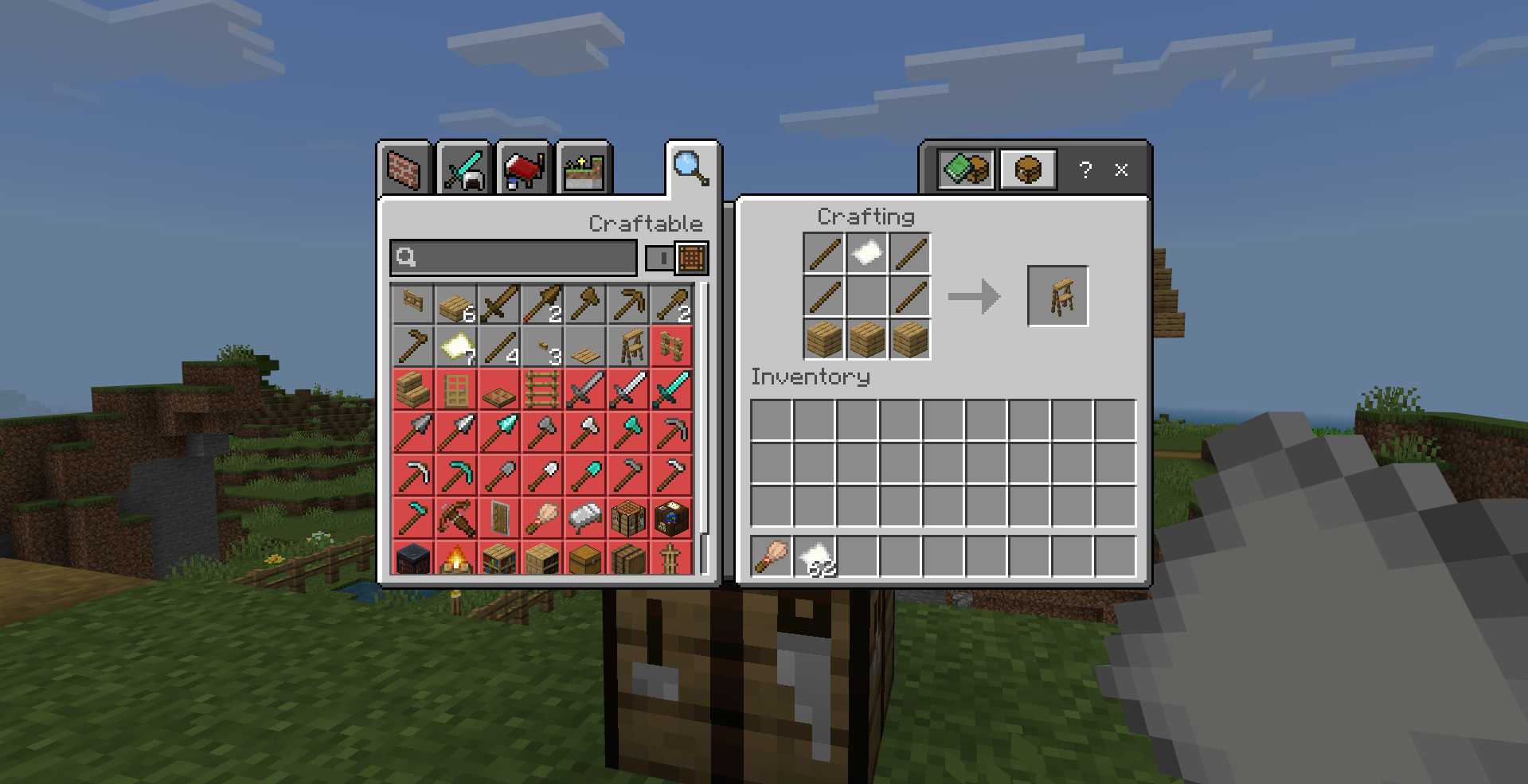
Let's start with the crafting recipe. You will need 1 paper, 4 sticks, and 3 planks of any wood type to craft the Painting Stand!
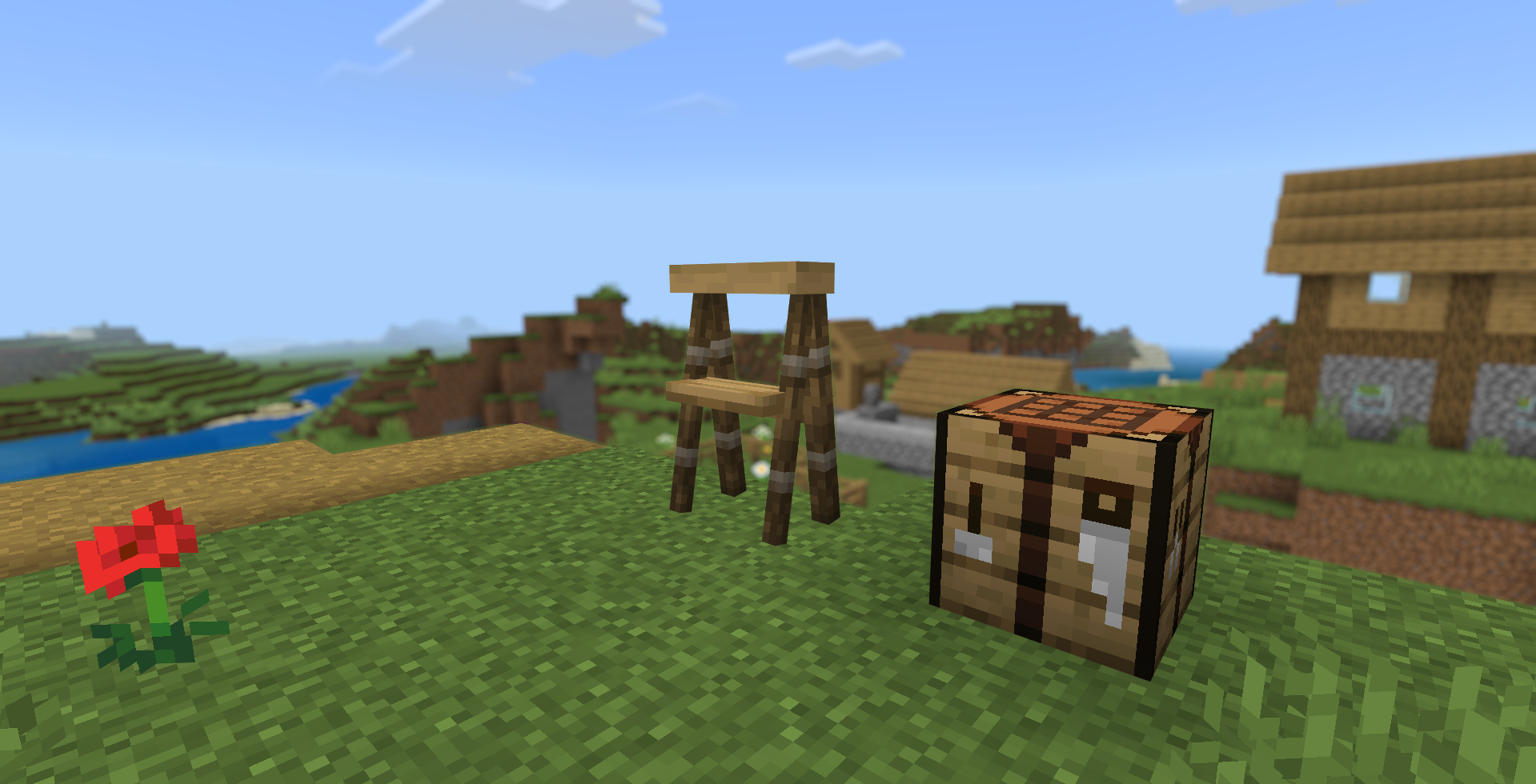
Let's place it down and admire the simplicity of it.
To get started, simply interact with the Painting Stand while holding some papers. This will open up a new interface where you can name your artwork and choose a size for your canvas. The size options base on the number of papers you have, so if you have 6 papers, you can create a 2x3 canvas.
Using the brush, you can select different tools with the panel on the bottom on the canvas. By selecting the Brush tool, you can draw onto the canvas by interacting with it
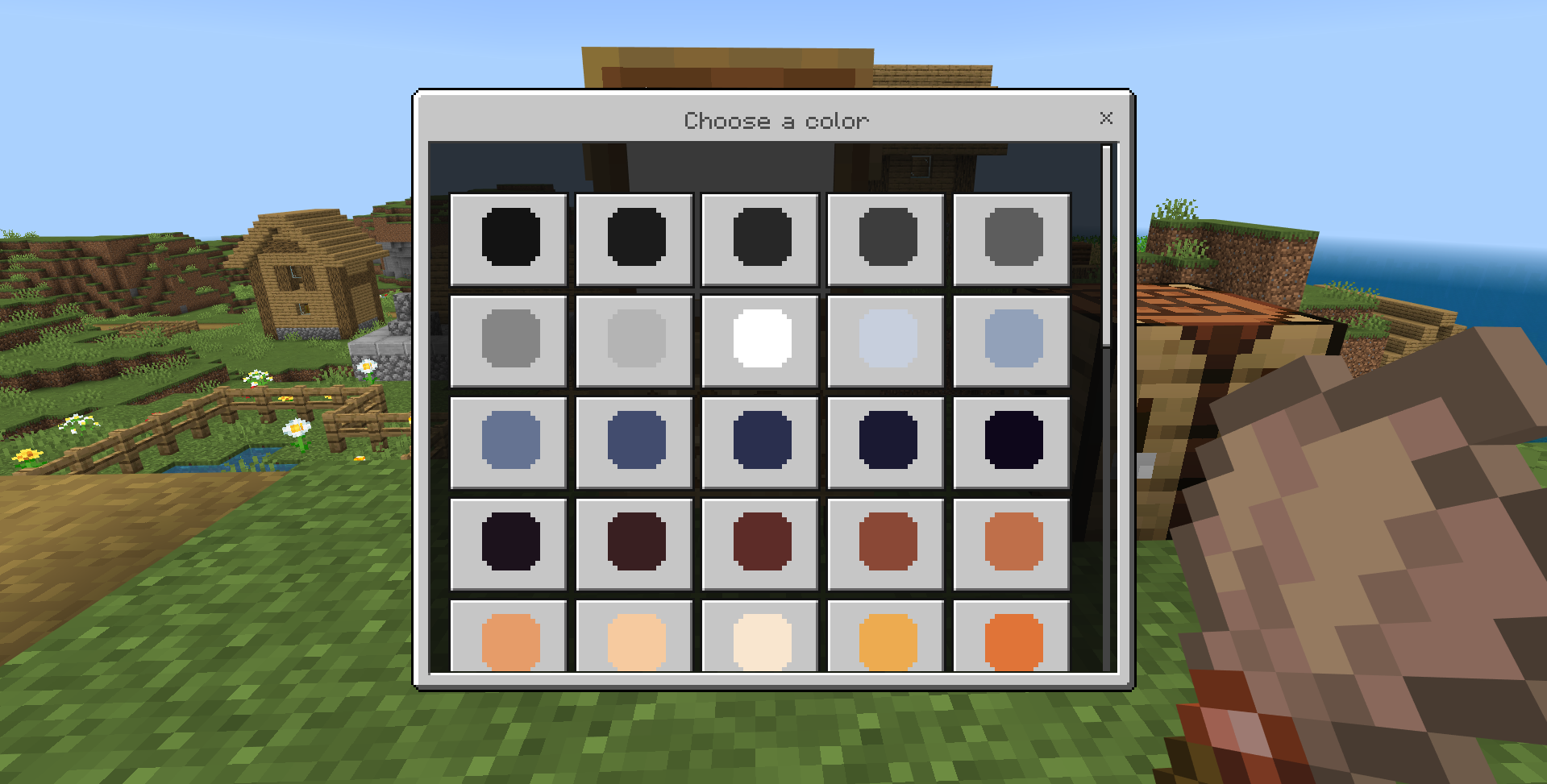
Click the color palette button to open up the color selection interface. Here, you can choose from a wide range of colors to use in your artwork. Simply click on a color to select it, and then use the brush tool to apply it to your canvas.
Now, let's take a closer look at other tools!
- Bucket Tool: You can fill an entire area with a single color. Just click on the area you want to fill, and it will be filled with the selected color!
- Undo: You can undo your last action by clicking this button.
- Line Tool: Click to select the first point, then drag to the second point then release to select the second point, a line will be drawn between these 2 points
- Circle Tool: Click to select the center point, then drag to the edge of the circle and release to create the circle.
- Rectangle Tool: Click to select the first point, then drag to the second point then release to select the second point, a rectangle will be drawn between these 2 points
- Triangle Tool: Click to select the first point, then drag to the second point then release to select the second point, a triangle will be drawn inside the bounding box made by the 2 points
When you finish your masterpiece, simply look at the Painting until you see the name tag appears, and shear it to collect it!
If you want to edit your Painting even after you shear it, just put the Painting Item back on to the Painting Stand!
When a painting is on the Painting Stand, you can interact with the stand while holding paper to open the cloning interface. The clone will capture the painting’s current state and won’t be affected by any further edits made on that painting
If you sneak and click the Painting Stand while there's a painting on it, an export interface will appear. By copy the data inside the text field, you can go to https://blockstate.team/tool?tool=art-enthusiasm-export and paste the data in, to export your painting
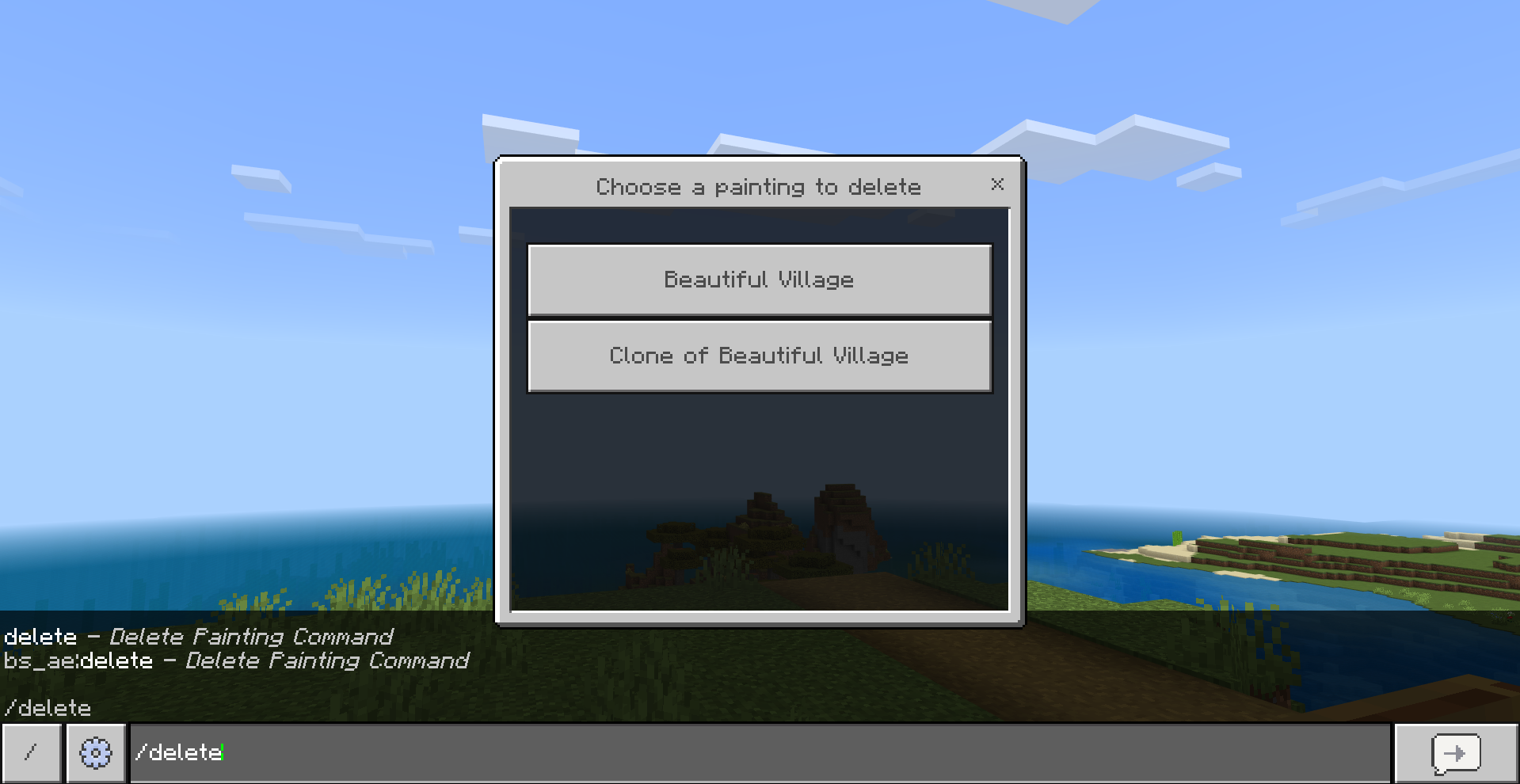
In case you want to delete a painting, use the command '/delete' or 'bs_ae:delete' to open up the delete menu. Note that, once deleted, any painting in the world will stop working, and this action is not reversable!